Upgrade the WAF Core Rule Set version
Upgrade the Core Rule Set (CRS) to use newer attack detection rules and rule improvements. A new version can change which requests match rules, so evaluate it against your application traffic and tune false positives before making it active.
The portal runs this test through Staged WAF: the newer CRS evaluates real traffic in logging mode while the main WAF continues using its current version and enforcement mode. The Paranoia Level stays the same during the test.
This guide takes you through choosing a version and update policy, testing the upgrade, adding rule exclusions, and activating the new version.
Choose and test a newer version
- Open your HTTP Proxy under Traffic Management → Traffic Configurations.
- Select Web Application Firewall → General.
- Under Core Rule Set Version, click Upgrade CRS Version in Staged WAF.
- Select the target Core Rule Set Version. The selector offers newer versions with the same or a broader automatic upgrade policy than your current selection.
- Review the inherited rule exclusions and add any exclusions already needed for your application.
- Click Create Staged WAF.
- Back in the traffic configuration, click Apply, then Confirm to deploy the test.
Where available, choose the update policy that suits your configuration:
| Selection | Behavior |
|---|---|
Exact version, such as 4.28.0 | Pins the configuration to that release. |
Minor-version wildcard, such as 4.28.* | Receives patch updates within that minor version. |
Major-version wildcard, such as 4.*.* | Receives minor and patch updates within that major version. |
These are examples; available versions change with new releases. For wildcard selections, the portal shows the resolved version beside the selection. The selected update policy also transfers to the main WAF when you activate the upgrade.
Only one upgrade can be tested at a time. If a Paranoia Level increase is already staged, complete that test or replace it before testing a newer CRS version.
Create Staged WAF prepares the change in the form. Complete Apply → Confirm to install it on the proxy. An Unsaved changes banner means deployment is still required.
Investigate false positives
Include representative application traffic, such as sign-in, forms, API requests, and uploads, in your evaluation. Test events appear in the dedicated staged view; the main WAF dashboards describe the active WAF.
Tune rules directly from the logs
You can investigate a triggered rule and apply an exclusion from Staged WAF View, without opening the traffic configuration's WAF form. This workflow is available for both Paranoia Level and CRS version tests.
-
In Web Application Firewall → General, click Analyze logs for Staged WAF. The Staged WAF View opens for your traffic configuration.
-
Open the time-range filter and select a period covering your test traffic, such as Last 7 days when the events occurred earlier in the week. If no events appear, also check the selected configuration, deployment status, and whether relevant traffic has occurred.
-
Find the rule in the Anomalies table and click WAF Tuning on its row. This opens Staged WAF Tuning for that rule, keeping the dashboard's time range and traffic configuration scope.
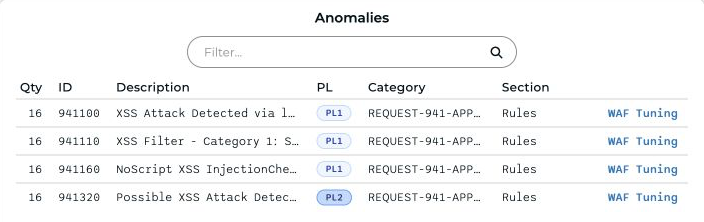
Open WAF Tuning from the rule's row in the Anomalies table. -
Review Rule Details, Triggered HTTP Proxies, and Paths to understand what matched. Source IPs, Cookie Names, User Agents, and Time of Day provide additional context.
-
Choose the appropriate exclusion using the controls in the tuning view:
Scope Where to apply it Global Click Exclude globally on triggered HTTP Proxies under Rule Details. Path In Paths, use the row action under Exclude rule by Path for the affected path. Cookie In Cookie Names, use the row action under Exclude rule by Cookie Name for the affected cookie. Only cookies present in the rule trigger are listed, and exclusion must be supported by the rule and event data. -
In Confirm Rule Exclusion, review the rule, scope, and affected proxy names. For a path exclusion, review or edit the path. Check that the dialog says it will update the Staged WAF, then click Exclude in the Staged WAF.
-
Check the result message. Use Go back to WAF view to return to the dashboard and review subsequent traffic to assess the change.
The tuning view applies the exclusion directly to the staged configuration; you do not need to open the WAF form or complete a separate Save changes → Apply step. The main WAF keeps its existing exclusions until you activate the upgrade.
Prefer a path or cookie exclusion when that is sufficient; a global exclusion disables the selected rule across the affected configuration. Check the affected proxy names before confirming an exclusion.
Add exclusions from the configuration
You can also add exclusions directly when you already know the rule and scope:
- Click Configure Staged WAF, then select Rules.
- Review inherited exclusions with Show exclusions currently in the main configuration. Current marks exclusions shared with the main WAF; Staged marks exclusions specific to the test.
- Add the required exclusion:
- Global: Click Add Rules, select rules, then click Add.
- Per Path: Click Add Path, enter the resource path, and click Add. Expand the path to configure its excluded rules.
- Inspection Target Exclusions → Per Cookie: Click Add Cookie, enter the cookie name, and configure its excluded rules.
- Click Save changes, then Apply → Confirm in the traffic configuration to deploy the exclusions.
- Return to the logs and evaluate subsequent traffic.
Use {*} for dynamic parts of a path or cookie name. An All rules exclusion is broader than excluding an individual rule. For more detail, see Handle false positives.
The WAF tuning view applies exclusions through its confirmation dialog. Edits in the configuration form require Save changes → Apply → Confirm.
Activate the newer CRS version
Once representative traffic has been evaluated and false positives addressed:
- Return to Web Application Firewall → General.
- Click Configure Staged WAF to review the target version, update policy, and exclusions, then return to General.
- Click Apply to main WAF and review the confirmation.
- Click Confirm, then Apply → Confirm to deploy the change.
The main WAF now uses the tested CRS selection and rule exclusions, including path and cookie exclusions. Its Paranoia Level and enforcement mode remain the same. If it is in blocking mode, the newer rules now enforce protection on live traffic. The separate test instance is removed.
Continue monitoring the main WAF after deployment, including after automatic updates if you selected a wildcard policy.
To stop a test without activating it, see Remove a test. To enable stricter checks within your CRS version, see Increase the WAF Paranoia Level.