Data Settings
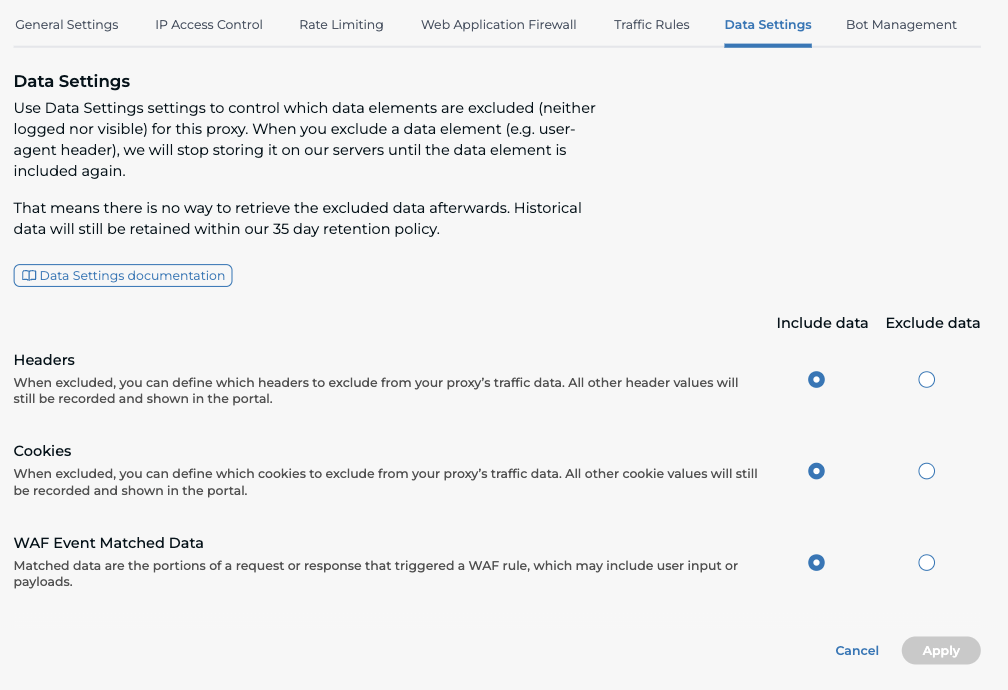
The Data Settings tab in the HTTP Proxies section allows you to control which data elements are excluded (i.e., neither logged nor visible) for each proxy. This feature gives you greater control over what data is collected and stored in your account.
⚠️ Important: When you exclude a data element (e.g., a specific HTTP header), it is no longer stored on our servers from the moment exclusion is activated. There is no way to retrieve excluded data retroactively. However, historical data is still retained according to our 35-day retention policy.
Overview
Use Data Settings settings to:
- Enhance data privacy.
- Limit sensitive information collected during traffic analysis.
- Improve compliance with data handling standards.
When enabled, this setting only affects future data. Past data will remain accessible within the retention window.
Data Element Controls
The settings are presented in a table with three rows:
| Feature | Include Data 🔘 | Exclude Data 🔘 |
|---|---|---|
| Headers | ✅ (Default) | |
| Cookies | ✅ (Default) | |
| WAF Event Matched Data | ✅ (Default) |
Each row corresponds to a data type. Selecting Exclude Data for a feature will stop collection of the relevant values. Only one option (include/exclude) can be selected per feature.
Feature Details
1. Headers
- Default: Included
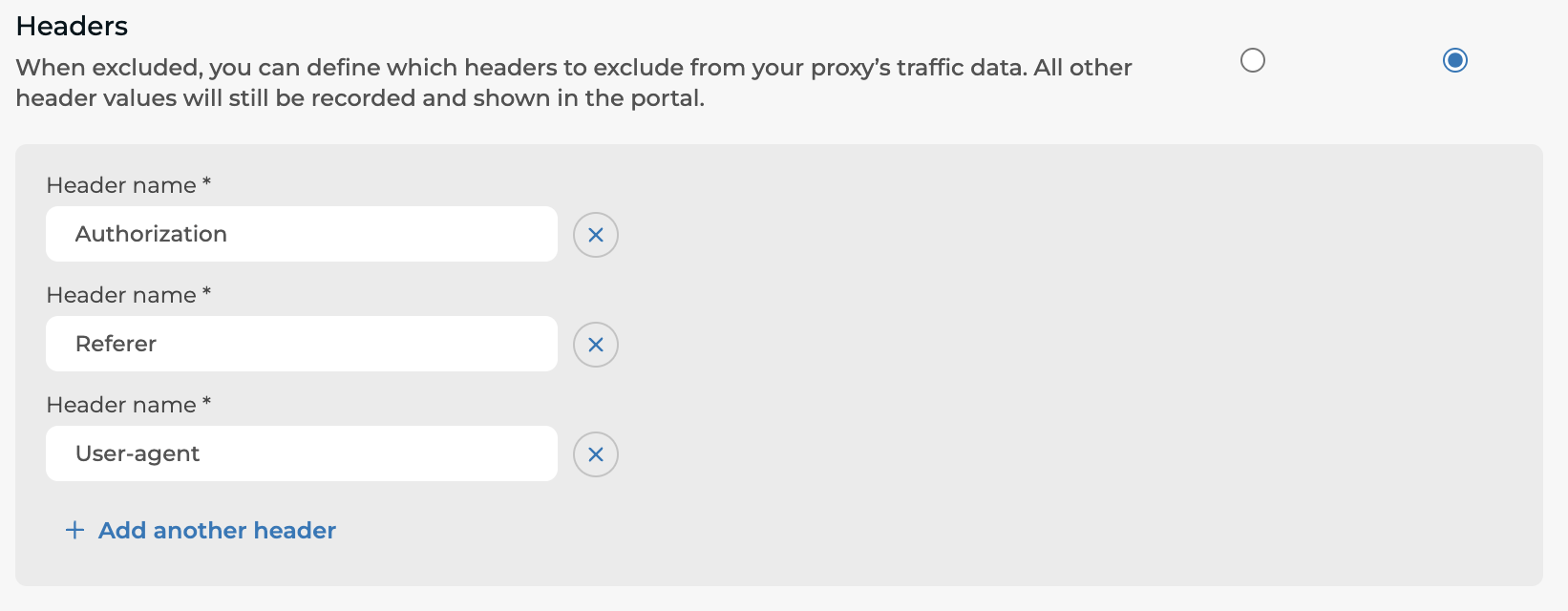
- When excluded, you may specify which headers should be omitted from traffic data.
- All unspecified headers will continue to be logged and displayed in the portal.
- Example use case: Exclude
AuthorizationorX-Session-IDheaders to prevent storing sensitive information.
2. Cookies
- Default: Included
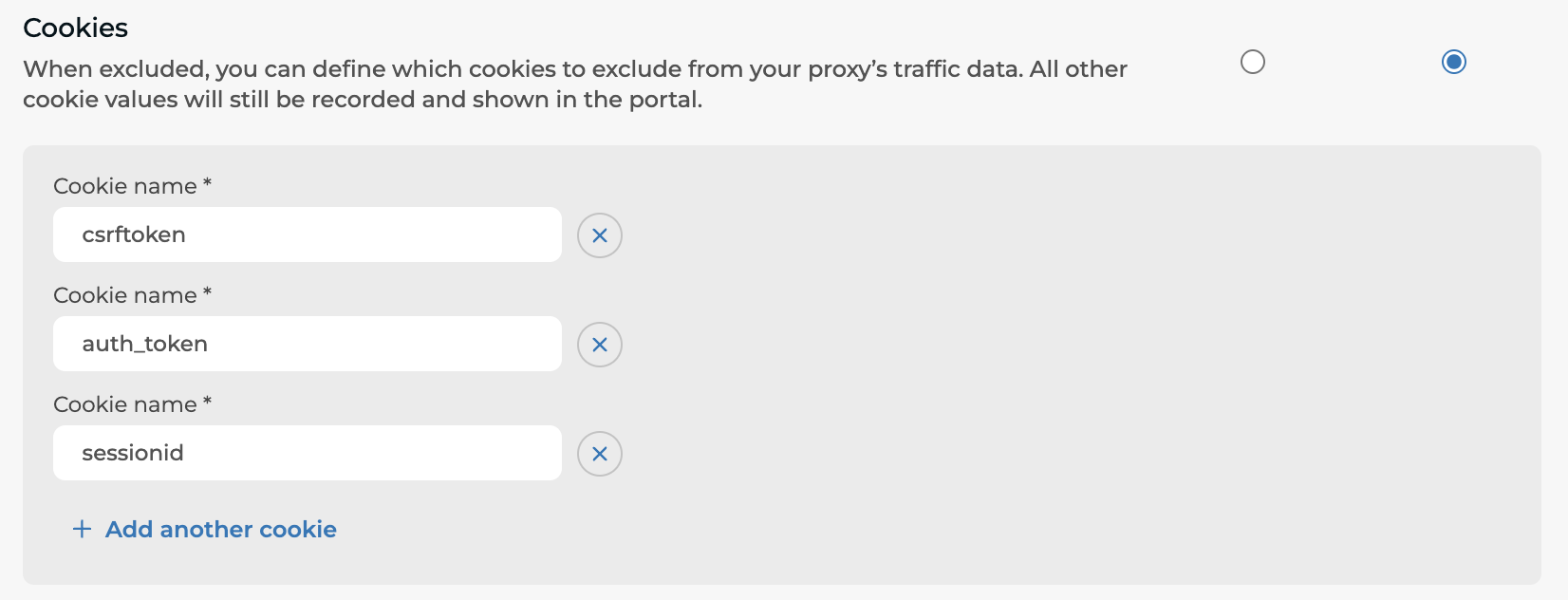
- When excluded, you can define which cookies to stop collecting.
- All other cookies will still be visible in the traffic data view.
- Example use case: Omit session or CSRF tokens for security reasons.
3. WAF Event Matched Data
- Default: Excluded
- When included, the system will capture matched data—the specific content in a request/response that triggered a Web Application Firewall (WAF) rule.
- Matched data can contain user input, payloads, or other potentially sensitive content.
- Once included, you can review the matched data for each WAF Event under: Dashboards > WAF View > Top WAF Events
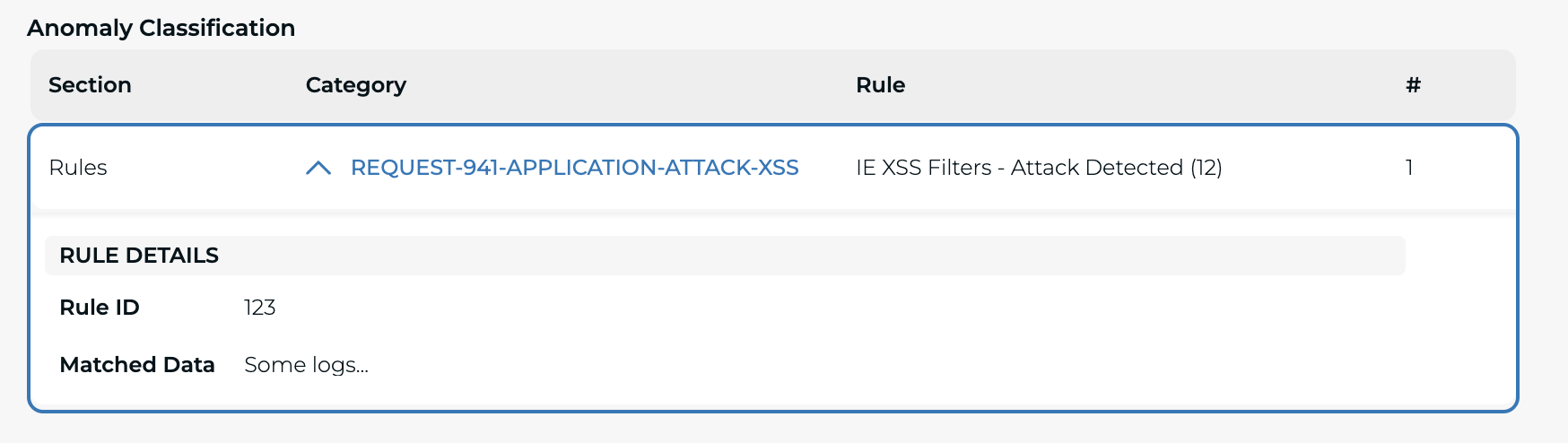
- Use this information to verify whether a WAF event was a false positive, and taking appropiate actions.
Notes
- Changing a setting only affects new traffic data.
- You can switch between "Include" and "Exclude" at any time. Data collected while excluded will not be retroactively available if inclusion is re-enabled.
- For compliance, you may want to exclude any data that could be considered Personally Identifiable Information (PII).