Configure IP Access Control
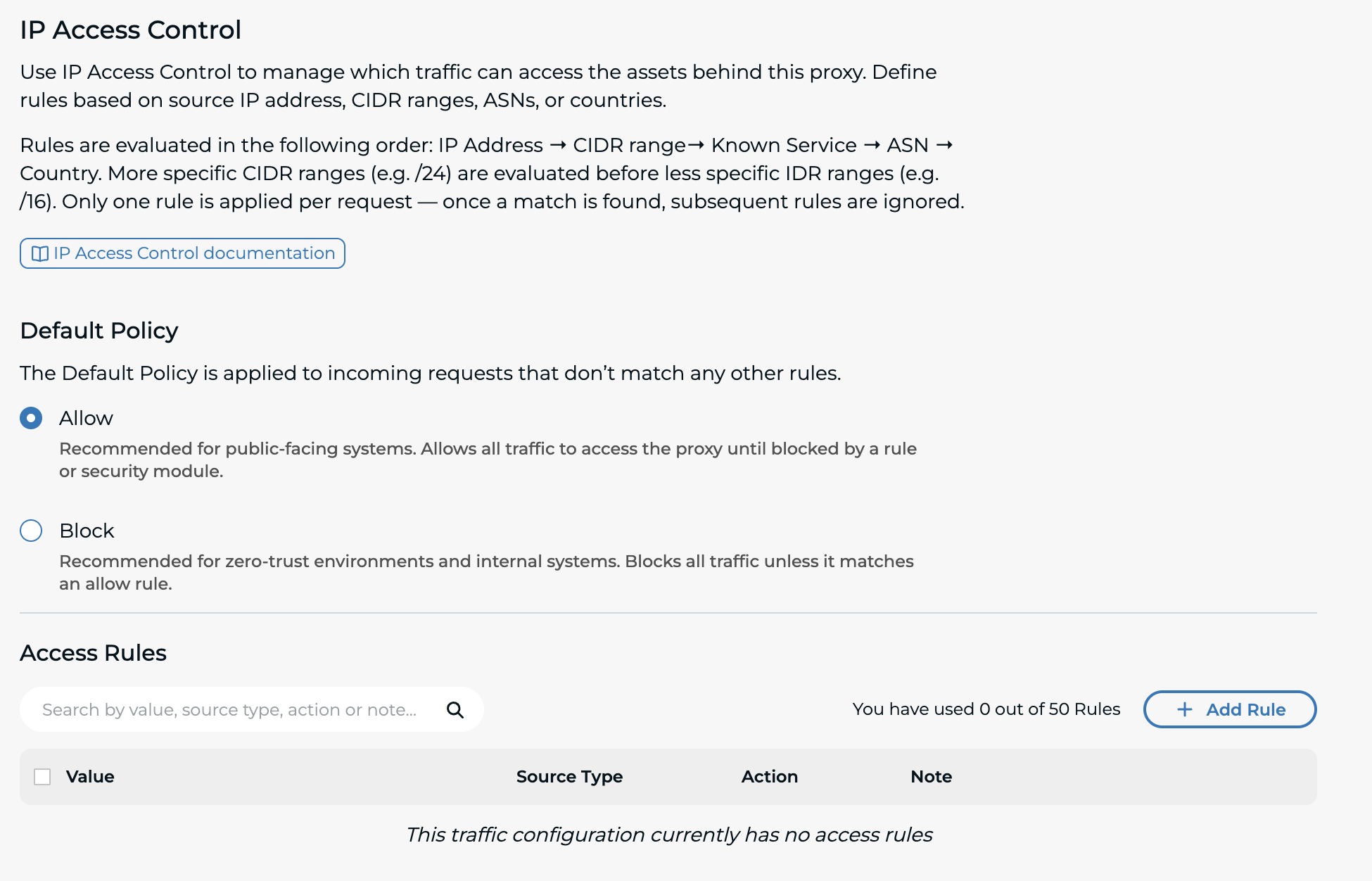
The Default Policy
The Default Policy applies to any incoming request that does not match an existing rule. You can choose between:
- Allow Recommended for public-facing systems. This setting allows all traffic unless blocked by a rule or security module.
- Block Recommended for zero-trust environments and internal systems. This setting blocks all traffic unless explicitly allowed by a rule.
Setting up a Rule
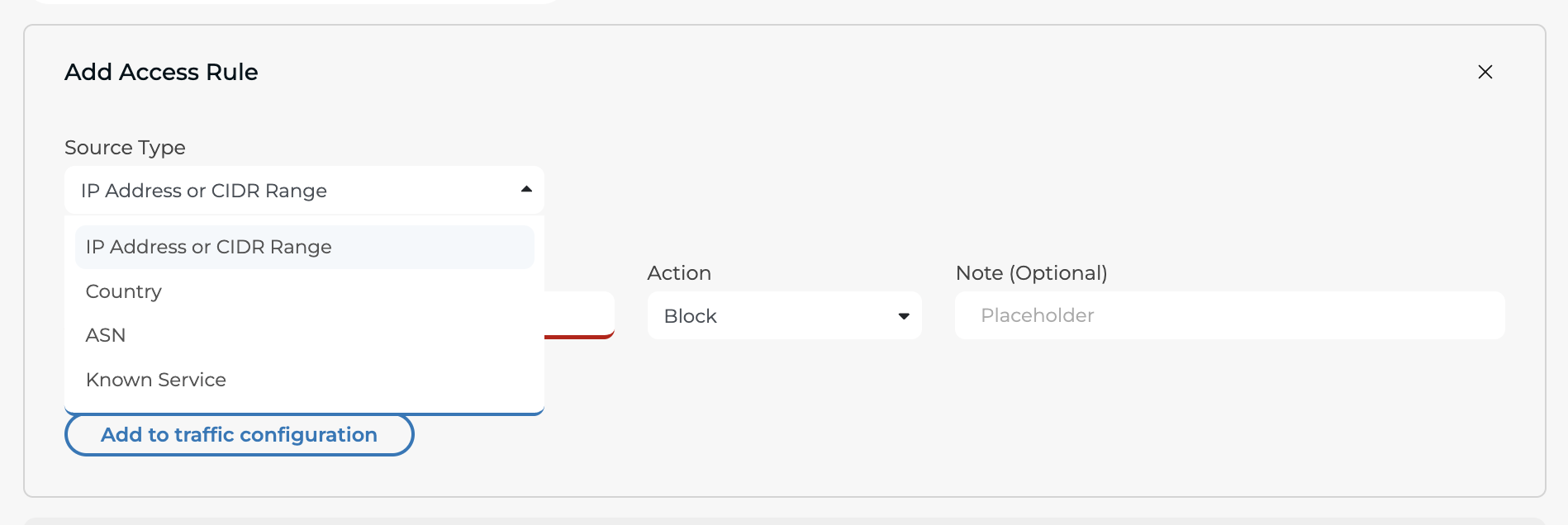
Access rules define how traffic is handled based on specific criteria. Each rule includes:
- Source Type - The type of rule to set up (e.g.,
IP Address or CIDR Range, `Known Service) - Value - The specific IP address, CIDR range, Known Service name, ASN or Country
- Action - Choose whether to Allow or Block traffic matching the value.
- Bypass Bot Protection - An optional toggle available for allowed IPs, CIDRs, or Known Services to exempt that traffic from bot challenges.
- Note - An optional description for future reference and auditing.
Steps to Add a Rule
- Navigate to
IP Access Controlunder your Proxy settings. - Click the
+ Add Rulebutton. - Select your desired Source Type from the drop down menu.
- Enter or select the Value:
- For IPs, CIDRs, and ASNs: Type the specific address or network number.
- For Known Services and Countries: Select the desired option from the provided list.
- Choose your action: Select Allow or Block.
- If you selected Allow (and your source type is IP, CIDR, or Known Service), you can optionally toggle Bypass Bot Protection to exempt this traffic from bot challenges.
- (Optional) Add a descriptive Note of the purpose of the rule.
- Click
Add to traffic configuration.
⚠️ Rule Limits: You can add a maximum of 50 rules per proxy. If you need to add a new rule but have hit this limit, you must delete an existing rule first.
Best Practices
- Use Block as the default policy for internal or sensitive environments.
- Regularly review and update your access rules to maintain security.
- Document rules using the Note field for clarity and auditing.