Use cases
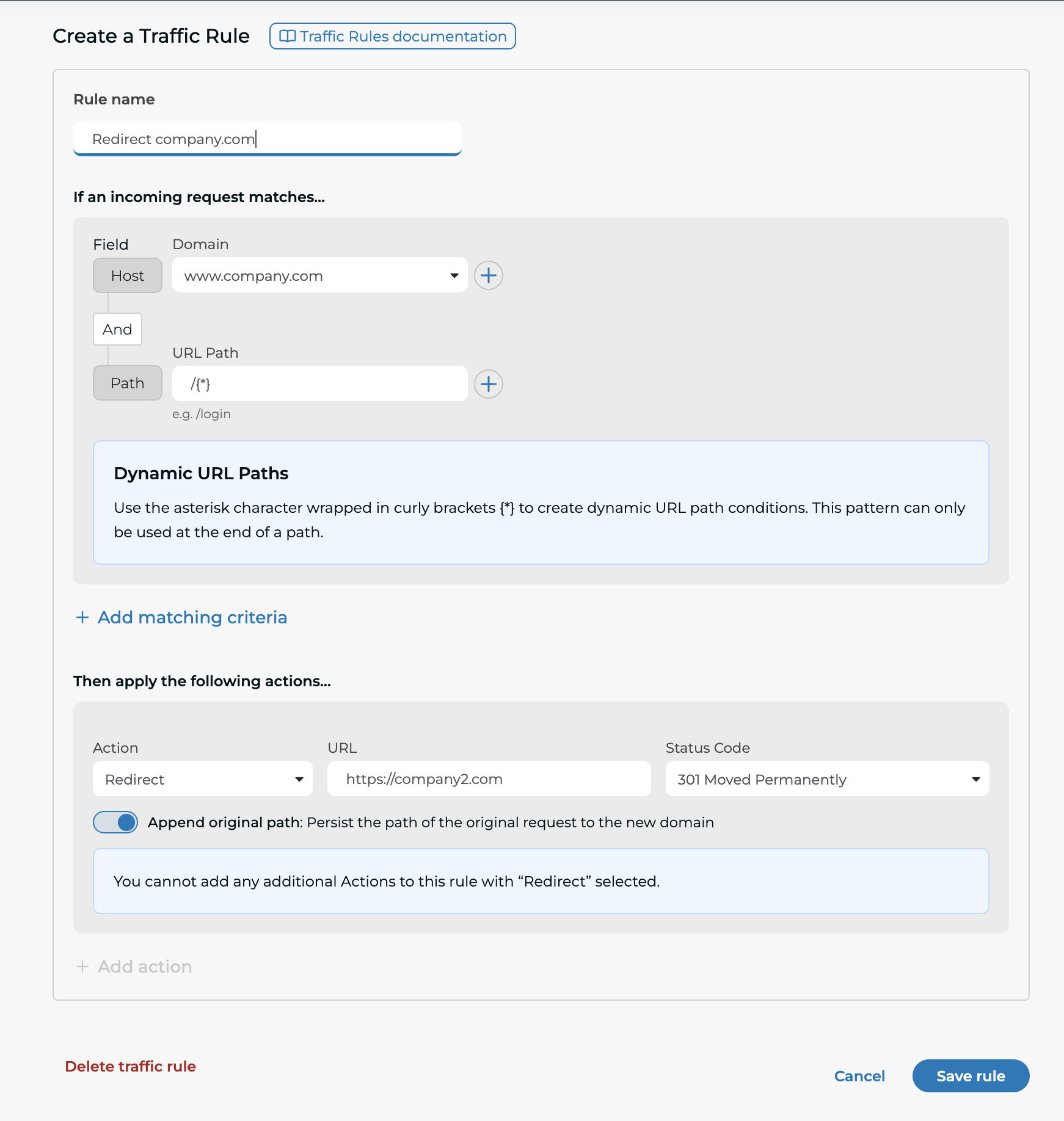
Use Case: Redirecting Traffic
Redirect traffic from one URL to another, either permanently or temporarily. Redirect HTTP to HTTPS to enforce secure connections or old URLs to new URLs during a site migration.
Use Case: Backend Switching Based on Host Header
To manage traffic for two different backend servers using the same proxy, use the Traffic Rules module. This is especially beneficial when your DNS is set up for a single IP address, allowing you to route traffic to multiple backend servers based on specific rules.
Imagine you have two backend servers:
- Backend Server 1: 192.0.2.0/24
- Backend Server 2: 198.51.100.0/24
You want to route traffic to these servers based on the host header. For instance, traffic to "www.thisisanexample.com" might go to Backend Server two, while traffic to "www.thisisatest.com" goes to Backend Server one. Using the Traffic Rules module, you can set up rules to match the host and path, then direct the traffic accordingly.
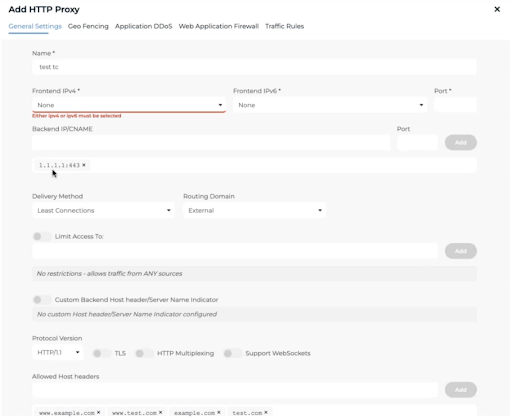
Navigate to the Traffic Rules module:
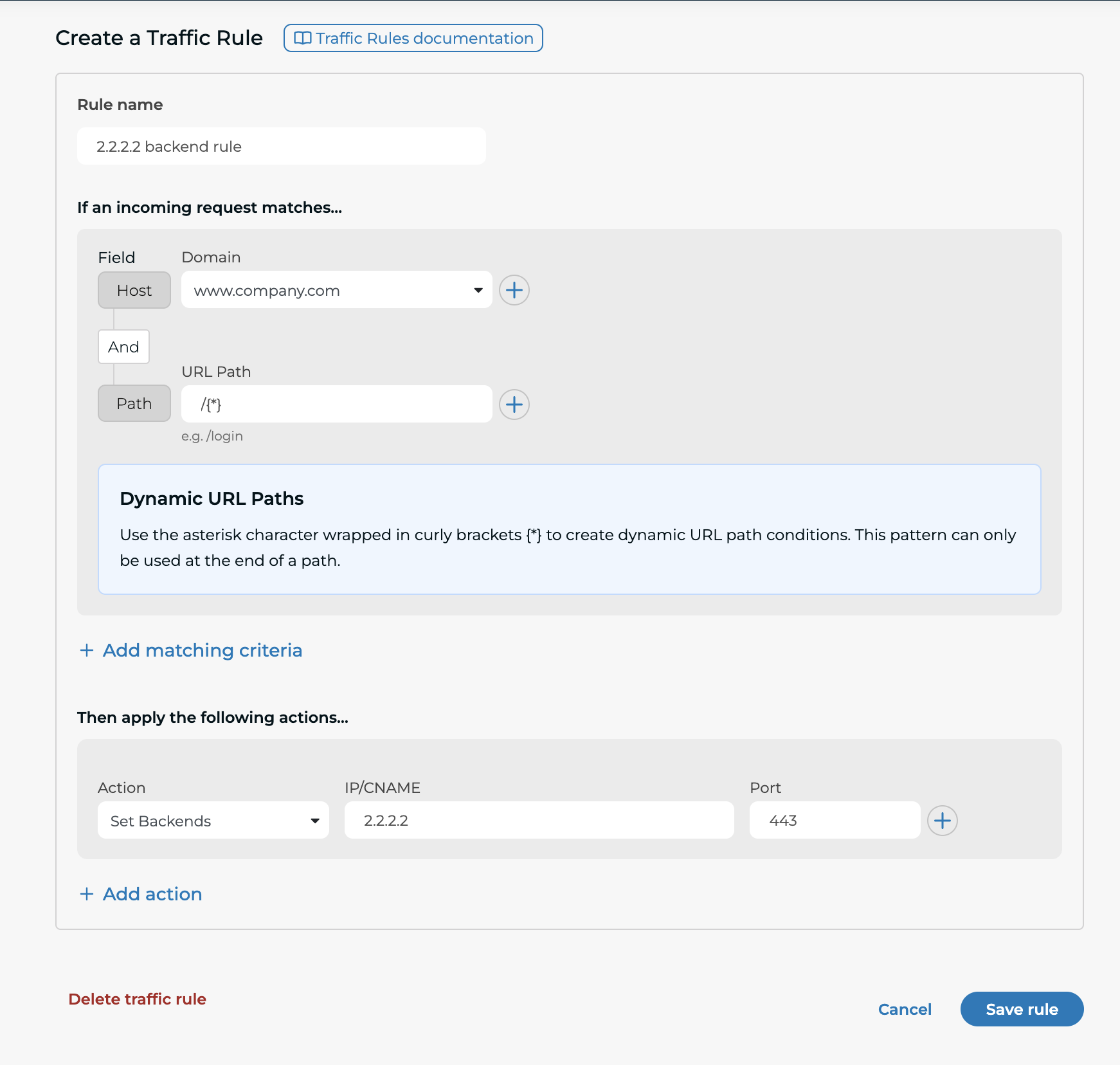
In the example above, traffic to "
{*}.
Use Case: Backend Switching Based on Path
Similar to the previous use case Backend Switching Based on Host Header, the traffic rules module can be leveraged to direct traffic to specific backend servers based on the request path.
Use Case: Configuring Body Size Limit
Use the Set Body Size Limit action in Traffic Rules to control the maximum size of incoming HTTP request bodies. You can configure the limit for specific hosts or paths to accommodate file uploads and other large payloads.
What is Body Size Limit?
The Body Size Limit defines the maximum amount of data that can be sent in a single HTTP request. This is particularly important for file uploads and large payloads.
-
Default Limit: 100 MiB This default aligns with the Web Application Firewall (WAF) introspection limit and applies whether the WAF is enabled or not.
-
Custom Limit: You can increase the limit beyond 100 MiB or remove it entirely. This allows you to support larger uploads, such as files exceeding 512 MiB.
Important Considerations
-
If you increase the limit beyond 100 MiB, only the first 100 MiB of the request body will be inspected by the WAF.
-
Any data beyond 100 MiB will not be inspected, which may introduce security risks if malicious content is embedded in the uninspected portion.
How to Configure Body Size Limit
- Navigate to Traffic Rules in your HTTP Proxy settings.
- Click Add Rule
- Select Set Body Size Limit as the action
- Enter the desired limit
- Specify a value (e.g., 512 MiB).
- Or choose No Limit to remove restrictions.
- Apply the rule.
You can create multiple traffic rules for different hosts or paths, but only one rule applies per request based on priority.
Best Practices
- Keep the limit as low as possible to reduce risk exposure.
- If increasing beyond 100 MiB, ensure additional security measures are in place for large file uploads.
- Regularly review traffic rules to align with your application requirements.
Use Case: Disabling Bot Protection
Disable bot protection for specific hosts or paths when legitimate clients cannot pass bot protection checks. Requests matching the traffic rule bypass bot protection, while all other requests continue to use the bot protection settings configured for the traffic configuration.
Disabling bot protection reduces protection against automated traffic. Limit the rule to only the hosts and paths that require it.