Alerts
Sensor checks every machine in your tenant about once a minute. When a machine goes offline, stops delivering events, or runs short of memory or disk, an alert fires. When the problem goes away, the alert clears. Both alert types can be sent via email and tools such as Slack through webhooks.
Alerts are configured once for your tenant. In the portal, open Settings and select the Alerts tab. Every member can see who gets alert emails and which webhooks are set up.
What is alerted
Each alert has a stable code, so you can route or filter on it in your own tools. Codes are never renamed or reused.
Machine
| Code | Title | Severity | Fires when |
|---|---|---|---|
machine.offline | Sensor offline | offline | The machine has sent no metrics in the last 2 minutes and the Sensor agent has not checked in for 5 minutes |
machine.metrics_missing | Sensor metrics missing | unknown | The agent is checking in, but no metrics have arrived in the last 2 minutes |
A machine whose Sensor agent has never connected, for example because the installer has not been run yet, is not reported as offline.
Events
These are reported per container, so each alert names the container, and with it the honeypot, it concerns.
| Code | Title | Severity | Fires when |
|---|---|---|---|
events.send_errors | Events failing to send | critical | Events failed to send to Baffin Bay in the last hour |
events.discarded | Events discarded | critical | Events were discarded in the last hour |
events.read_errors | Errors reading events | warning | The container's events could not be read in the last hour |
events.not_sent | Events not sent | warning | Events were generated, but none were sent in the last hour |
events.not_sent is held back for the first 15 minutes after a machine starts, while its containers come up.
There is no alert for a honeypot that records nothing. A machine on an internal network can see zero traffic for long periods, and that is how it's supposed to look.
Host
| Code | Title | Severity | Fires when |
|---|---|---|---|
host.oom_kills | Out of memory | critical | A process was terminated for lack of memory in the last hour |
host.memory_stall | Memory pressure | warning | Processes waited on memory more than 10% of the time in the last 15 minutes |
host.memory_low | Memory low | warning | Less than 5% of memory was available for the last 10 minutes |
host.cpu_busy | CPU busy | warning | CPU was above 90% for at least 55 of the last 60 minutes |
host.disk_full | Disk nearly full | warning | A disk has less than 1 GB free, or is at least 95% used |
host.scrape_errors | Host metrics failing | warning | Host metrics failed to be read 3 or more times in the last 10 minutes |
host.metrics_missing | Host metrics missing | warning | Events are still arriving, but no host metrics have arrived for 15 minutes |
When memory runs short at the same time as a container suddenly records far more events than usual, the alert names that specific container as the likely cause.
S3 archive
These are only checked when archiving to your own S3 bucket is turned on, which needs both Tenant-wide delivery and the destination to be on.
| Code | Title | Severity | Fires when |
|---|---|---|---|
s3.rejected | S3 uploads rejected | critical | The bucket rejected events in the last hour |
s3.dropped | S3 events dropped | critical | Events were dropped in the last hour because uploads were not keeping up |
s3.error_responses | S3 upload errors | warning | Uploads were answered with an error in the last hour |
s3.unreachable | S3 bucket unreachable | warning | Upload attempts could not reach the bucket in the last hour |
s3.backlog | S3 upload backlog | warning | 400 or more events are waiting to be uploaded |
s3.upload_overdue | S3 uploads overdue | warning | Events were generated, but nothing has been uploaded for 30 minutes |
When the bucket denies access or cannot be found, the alert says so, which usually points at the access key, bucket policy, bucket name, or region.
When an alert fires and clears
A problem has to be seen on two checks in a row, about a minute apart, before it sets off an alert, so a problem seen on only one check is never sent. For the alert to clear, it has to be gone for three checks in a row.
While a machine is offline, its other problems cannot be checked, so their alerts stay open until the machine is back and they can be checked again.
If a machine is removed from the tenant, or Tenant-wide delivery or a destination is turned off, the affected open alerts close without a message.
Alert emails
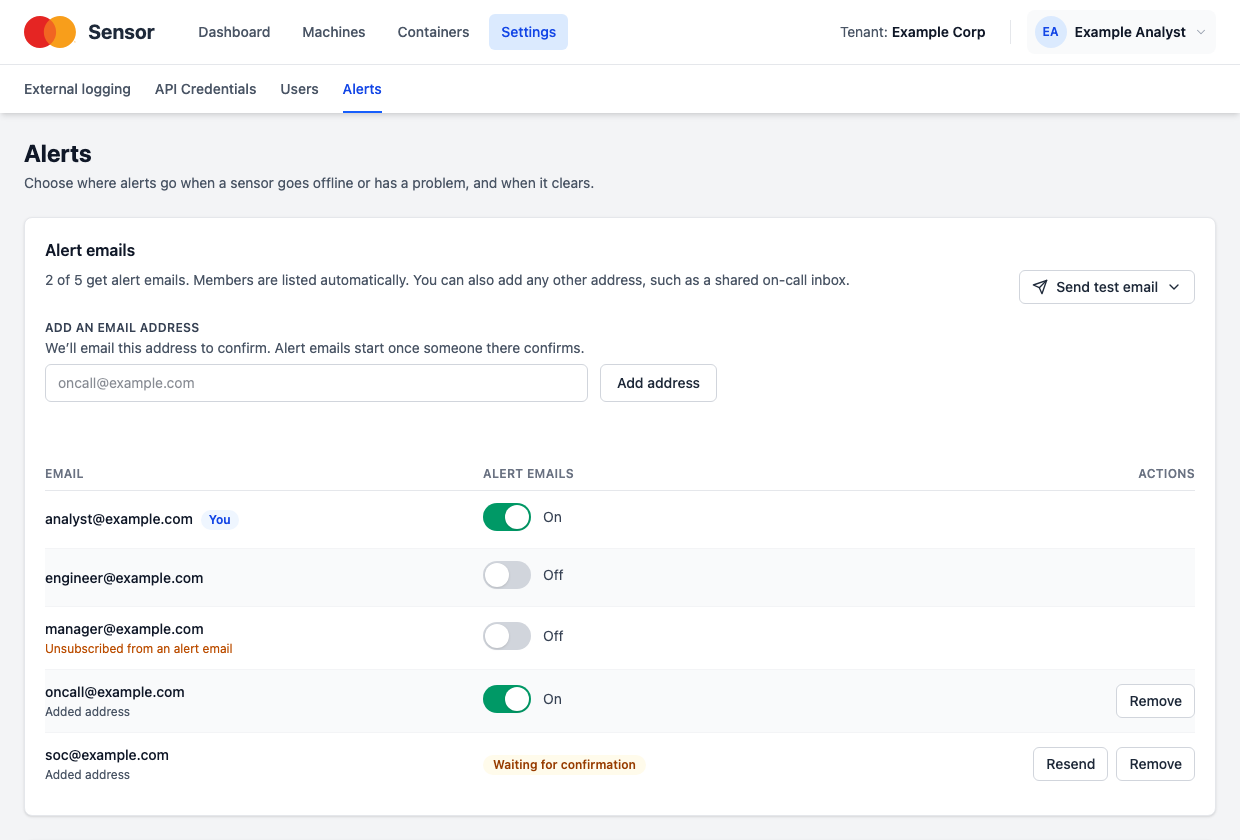
Every member of the tenant is on the alert email list, with emails turned off. You may activate the alerts with the switch next to your address.
Tenant admins can turn emails on or off for anyone on the list, and can add email addresses that do not belong to a member, such as a shared on-call inbox. A newly added address will first receive a confirmation email, and upon confirmation, begin to receive alerts. If the email is lost, an admin can resend it up to three times a day.
Everything that fires or clears for your tenant in the same check is sent as one email, with firing alerts listed before cleared ones.
Sending a test email
Select Send me a test email to check that alert emails reach you. Tenant admins can select Send test email and choose anyone on the list, including those whose emails are off. Test emails go out within about a minute and do not change anyone's settings.
Unsubscribing
Every alert email has an unsubscribe link, which turns alert emails off for that address. The list shows who unsubscribed. Tenant admins can turn them back on.
Webhooks
A webhook posts each alert to a URL as soon as it fires or clears, so it can land in a Slack channel, a paging service, or your own automation. See Alert webhooks to set one up.
Next steps
- Alert webhooks — send alerts to Slack or any tool that accepts webhooks.
- Getting started — enrol a machine and assign it a profile.